
Auto-KX modifier for medicare patients
Easily track and manage the KX modifier for Medicare therapy in Spry. The KX modifier signals that medically necessary therapy continues after a patient reaches their yearly Medicare spending threshold. Spry helps you monitor this and updates the modifier automatically based on real-time spend. Here’s how to check and adjust the KX modifier throughout your workflow.
Step 1: Open any Medicare patient's appointment details.
Step 2: At the top of the appointment card, look for the Medicare Cap and KX Status bar.
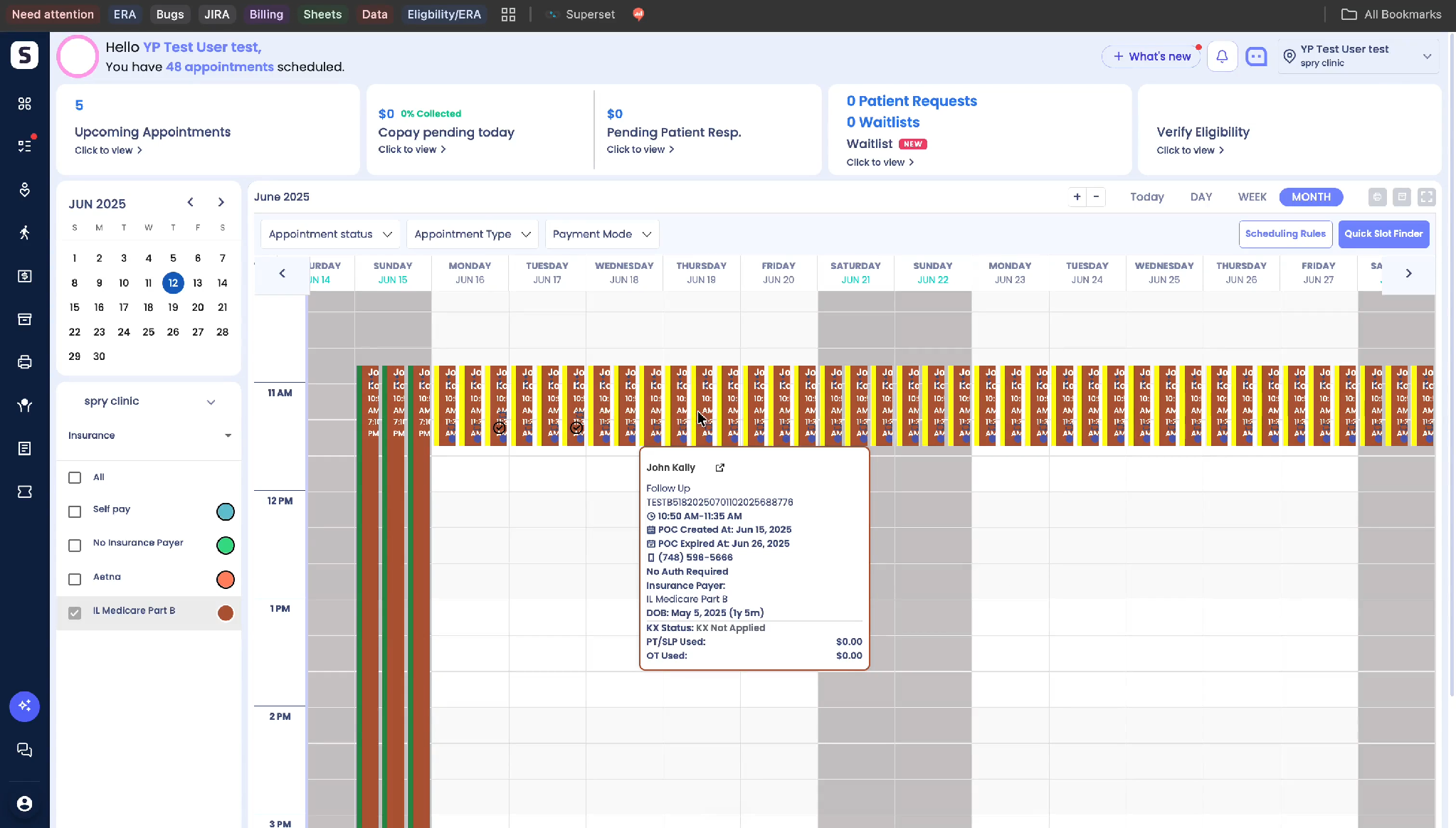
Step 3: Click to expand the bar and see a full breakdown of the therapy spend and whether KX is applied for this case.
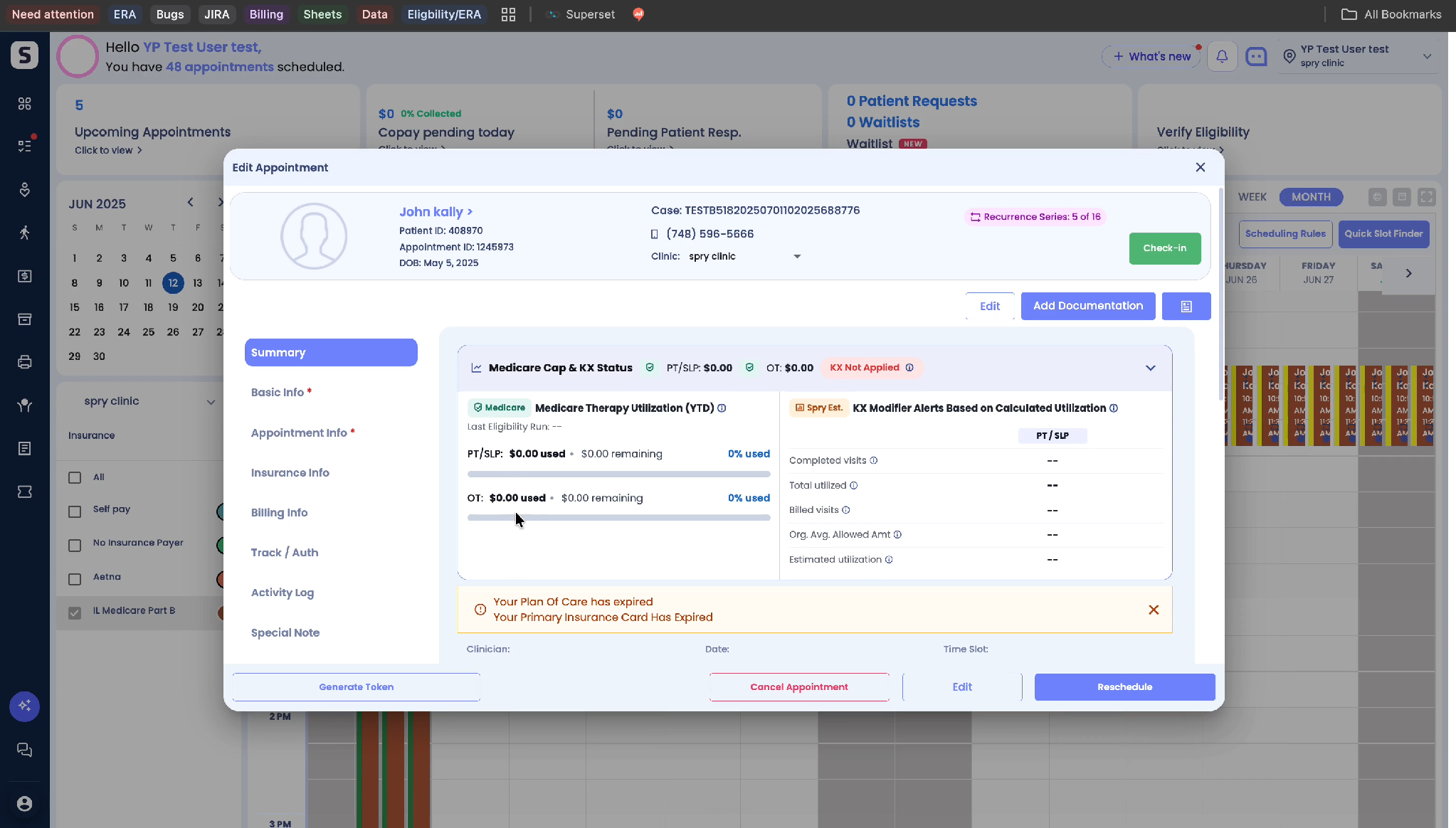
Step 1: On the patient's timeline, find the Medicare Cap and KX Status displayed at the top. Expand it to compare Medicare's official report to Spry's internal estimate.
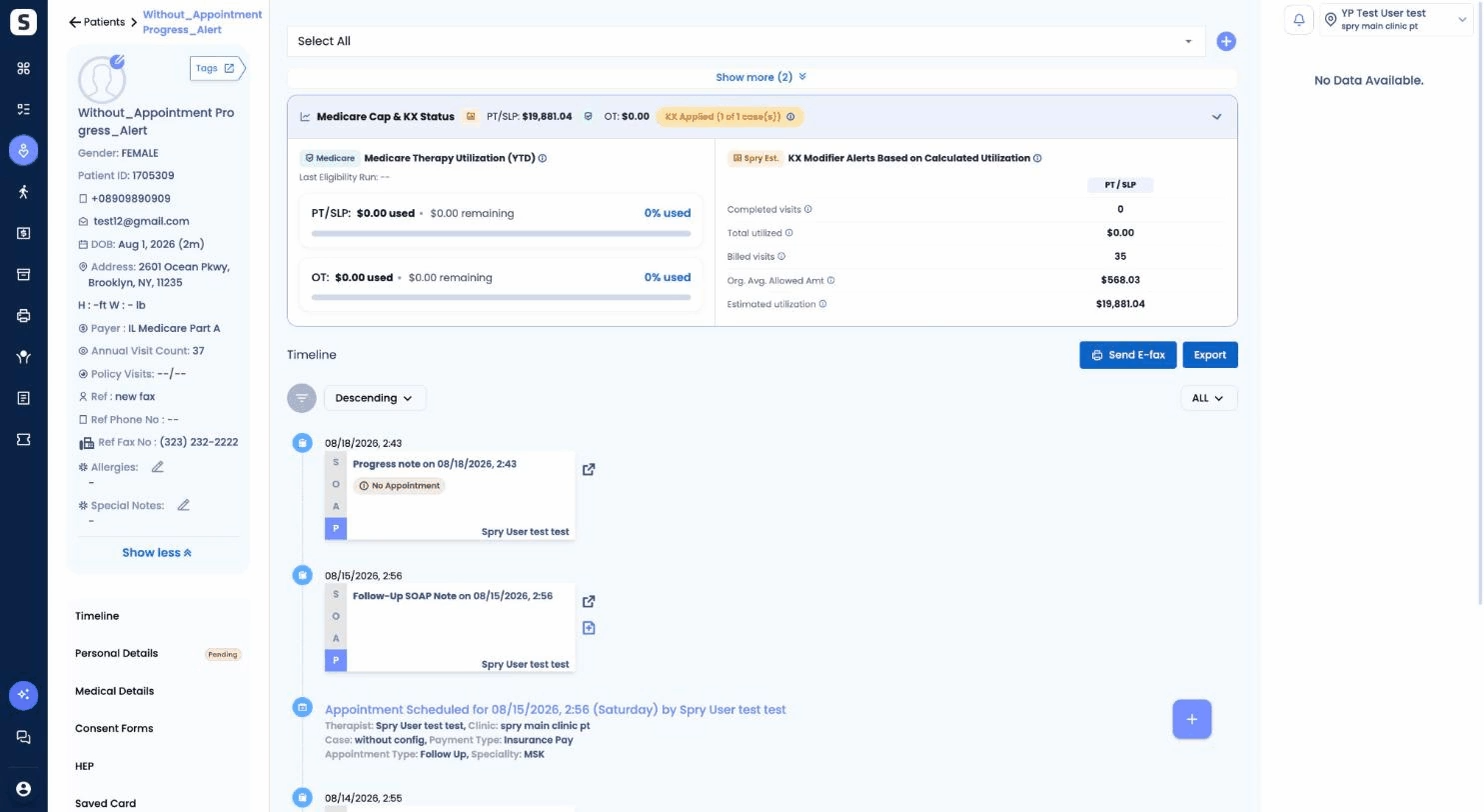
Step 2: Hover over the KX badge to see the KX status for each separate case.
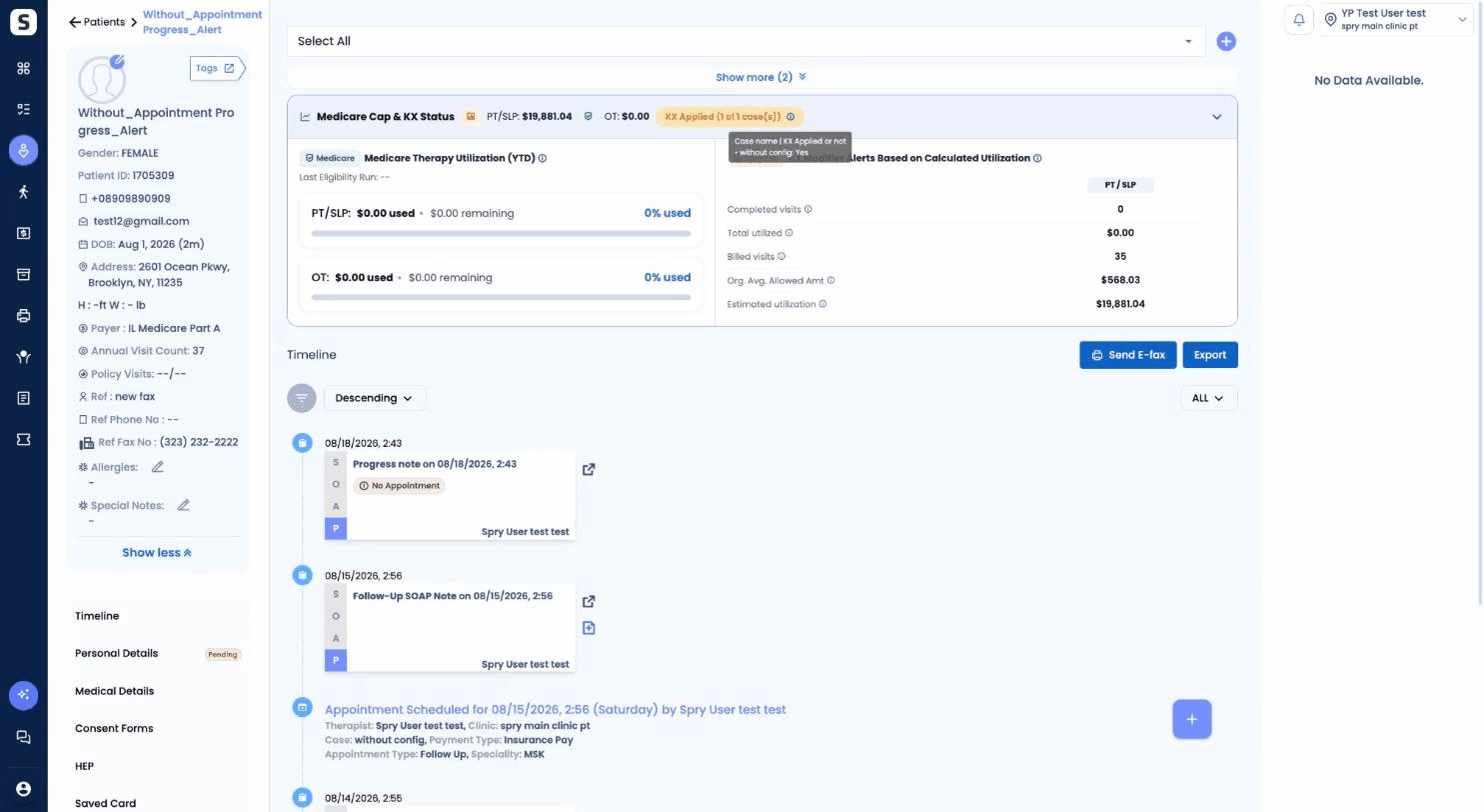
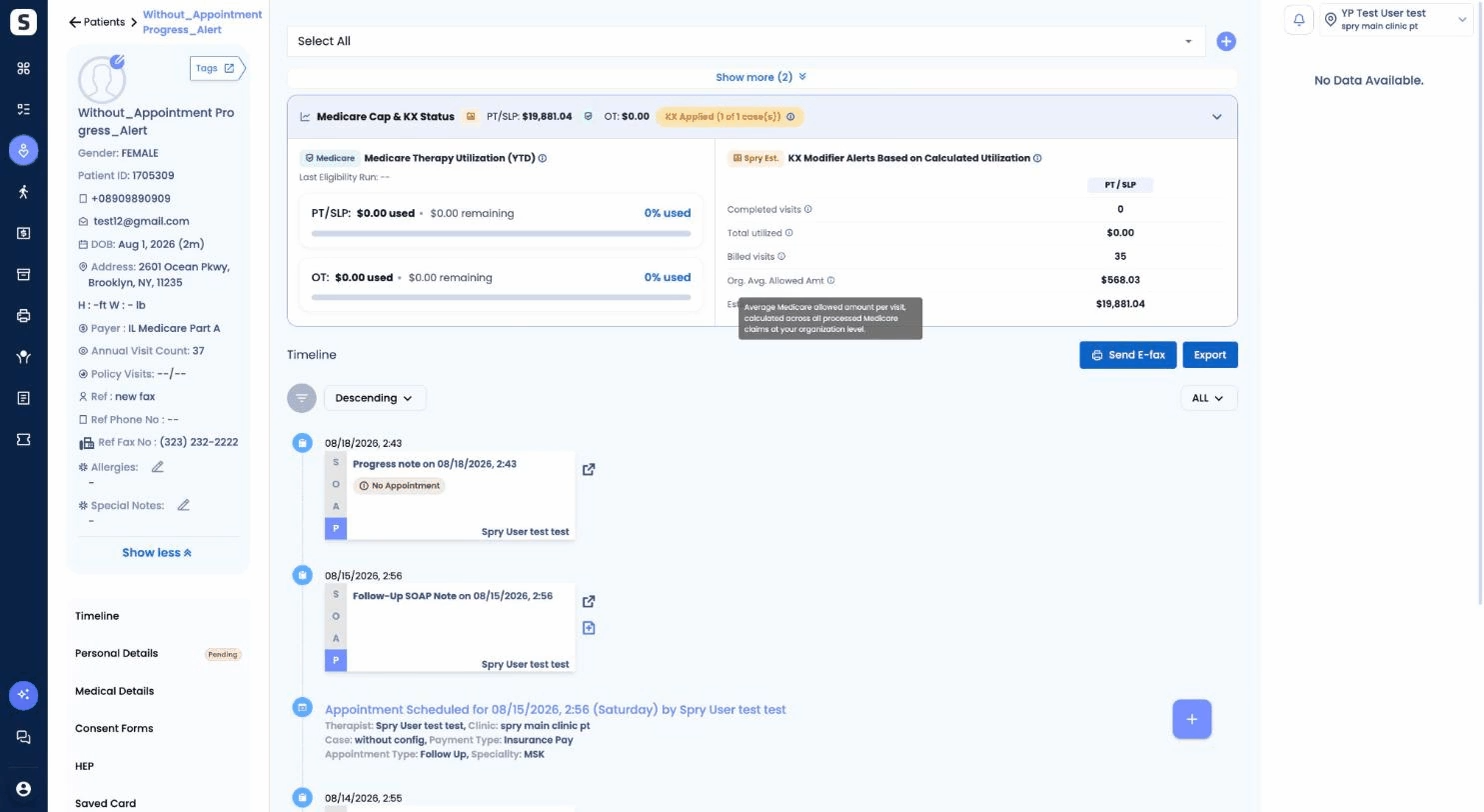
Step 3: Hover over any dollar figure in the bar to understand how it’s calculated.
Step 1: Open any SOAP note for the patient. The same Medicare Cap and KX Status bar appears at the top.
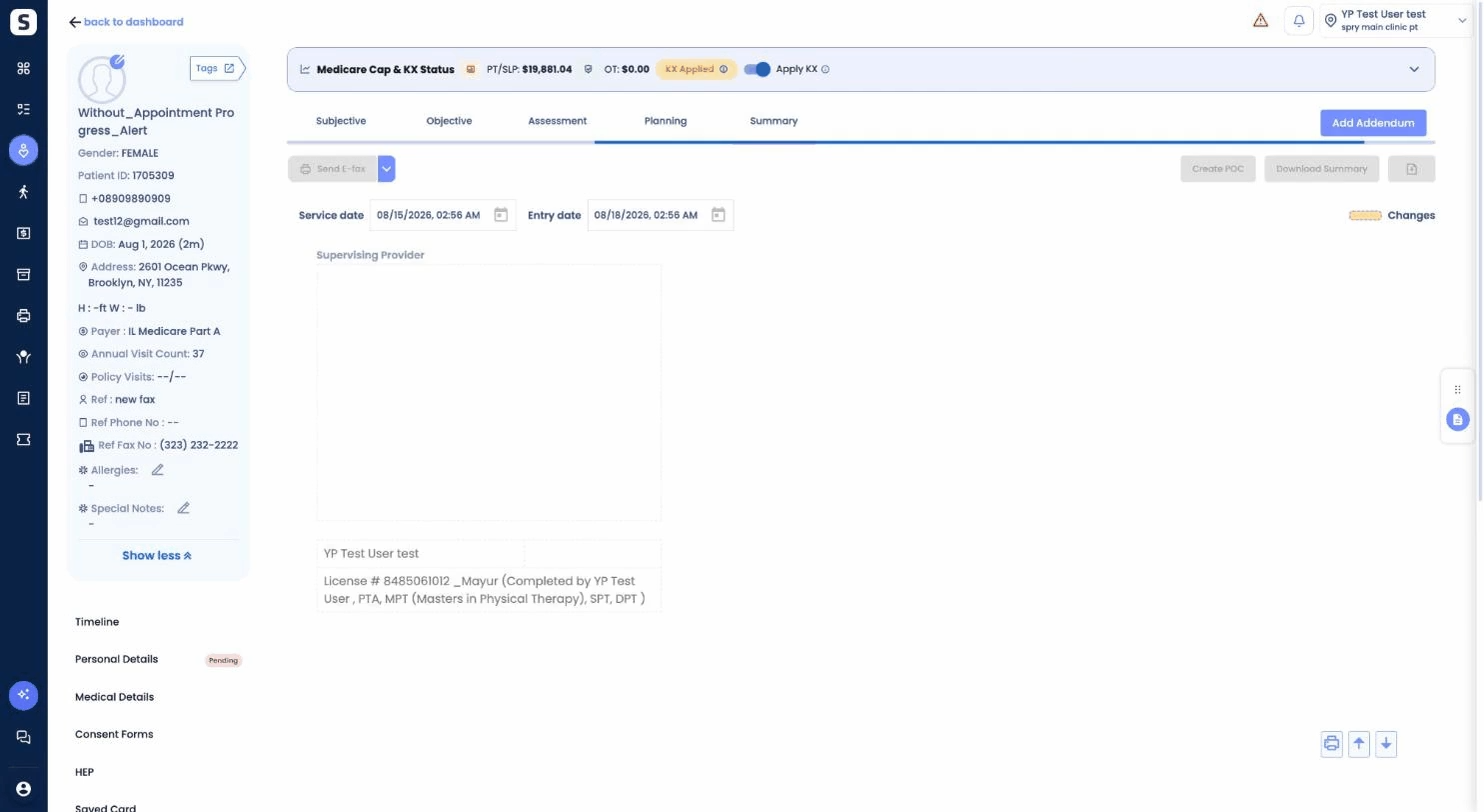
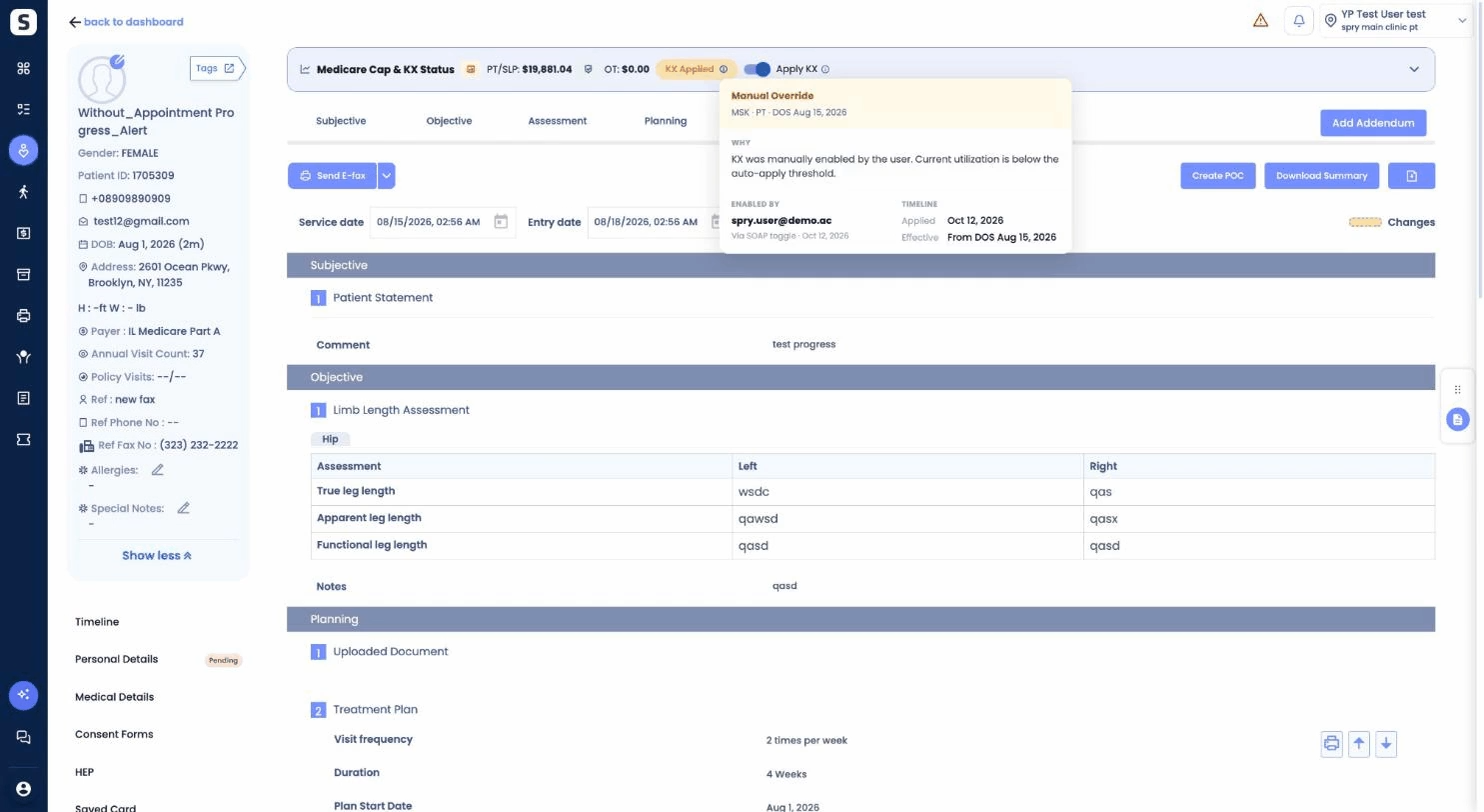
Step 2: Hover over KX Applied to view details on when, why, and by whom the modifier was added.
Step 3: If you need to adjust the modifier, use the Apply KX toggle — available for this date of service and all future services.
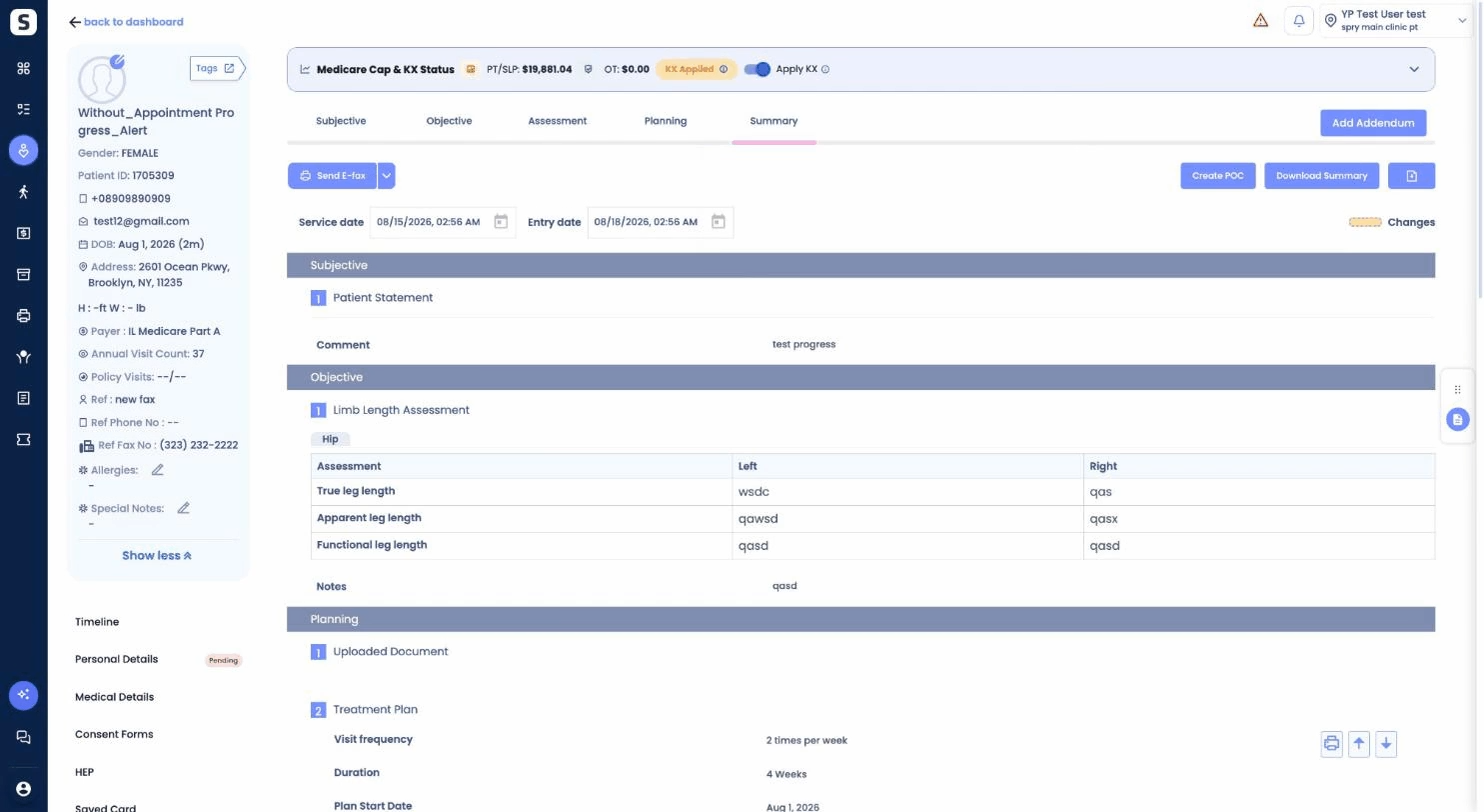
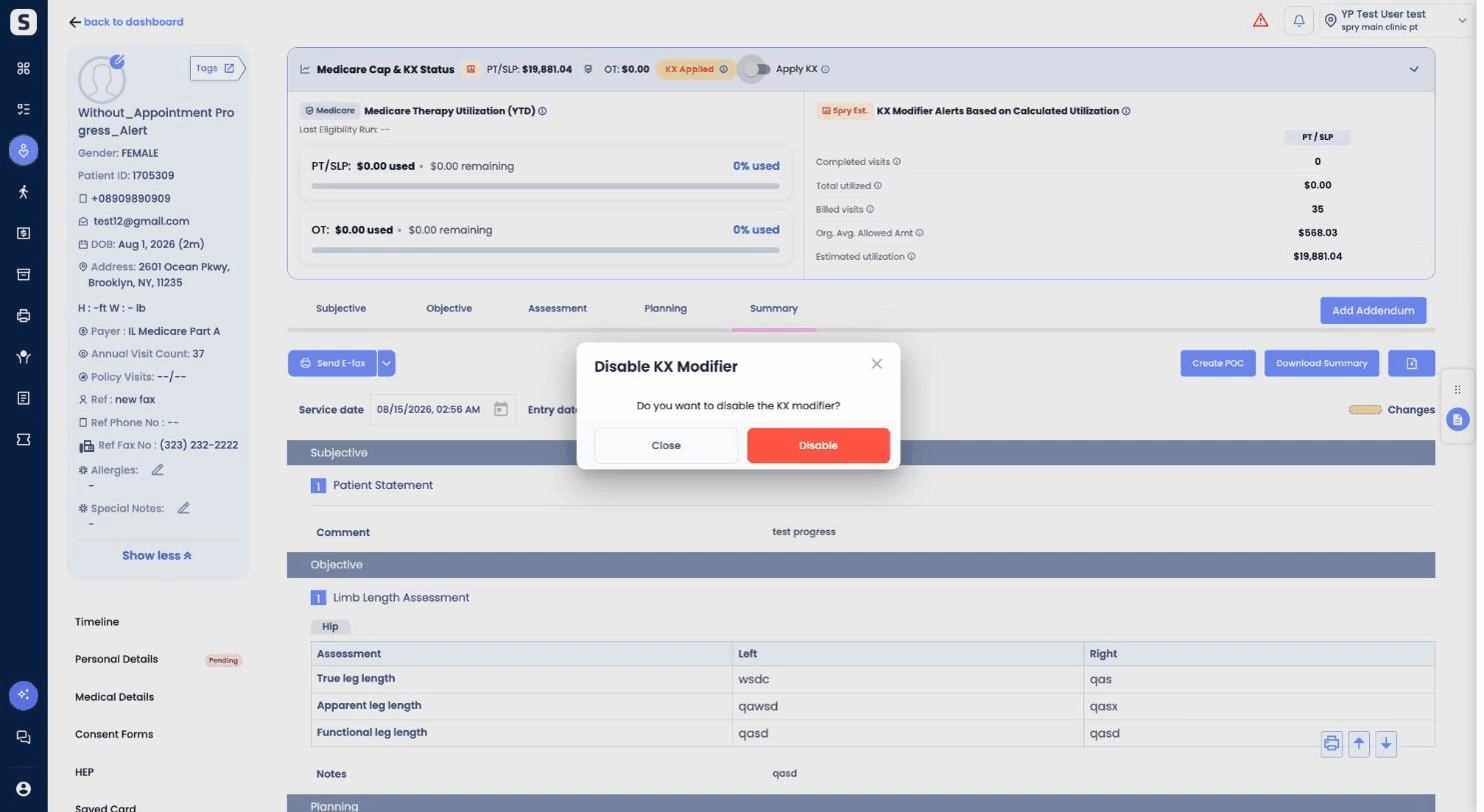
Step 4: Turn off the toggle, click Disable to confirm, and see the badge update to KX Not Applied.
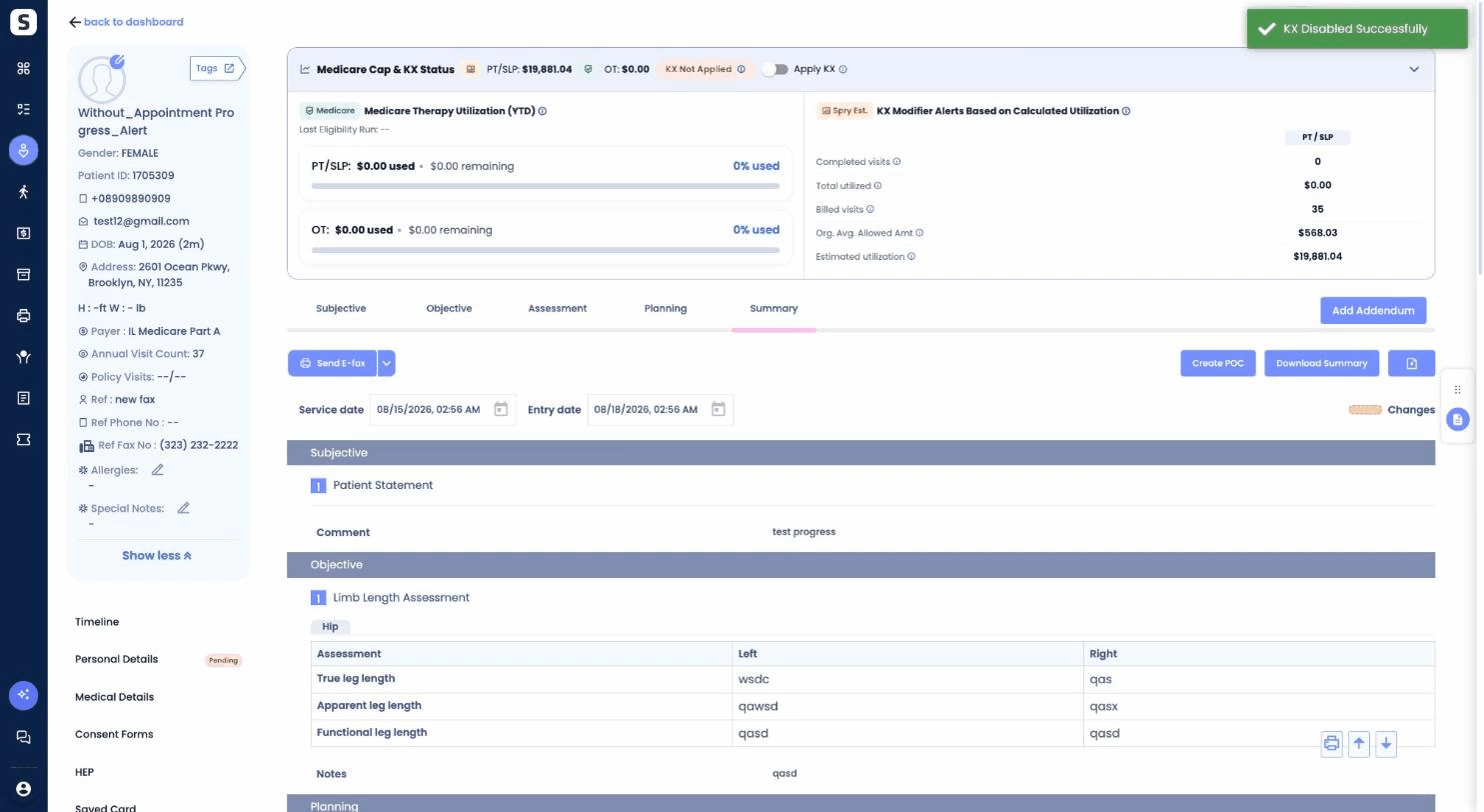
Step 5: To reapply KX, turn the toggle back on.
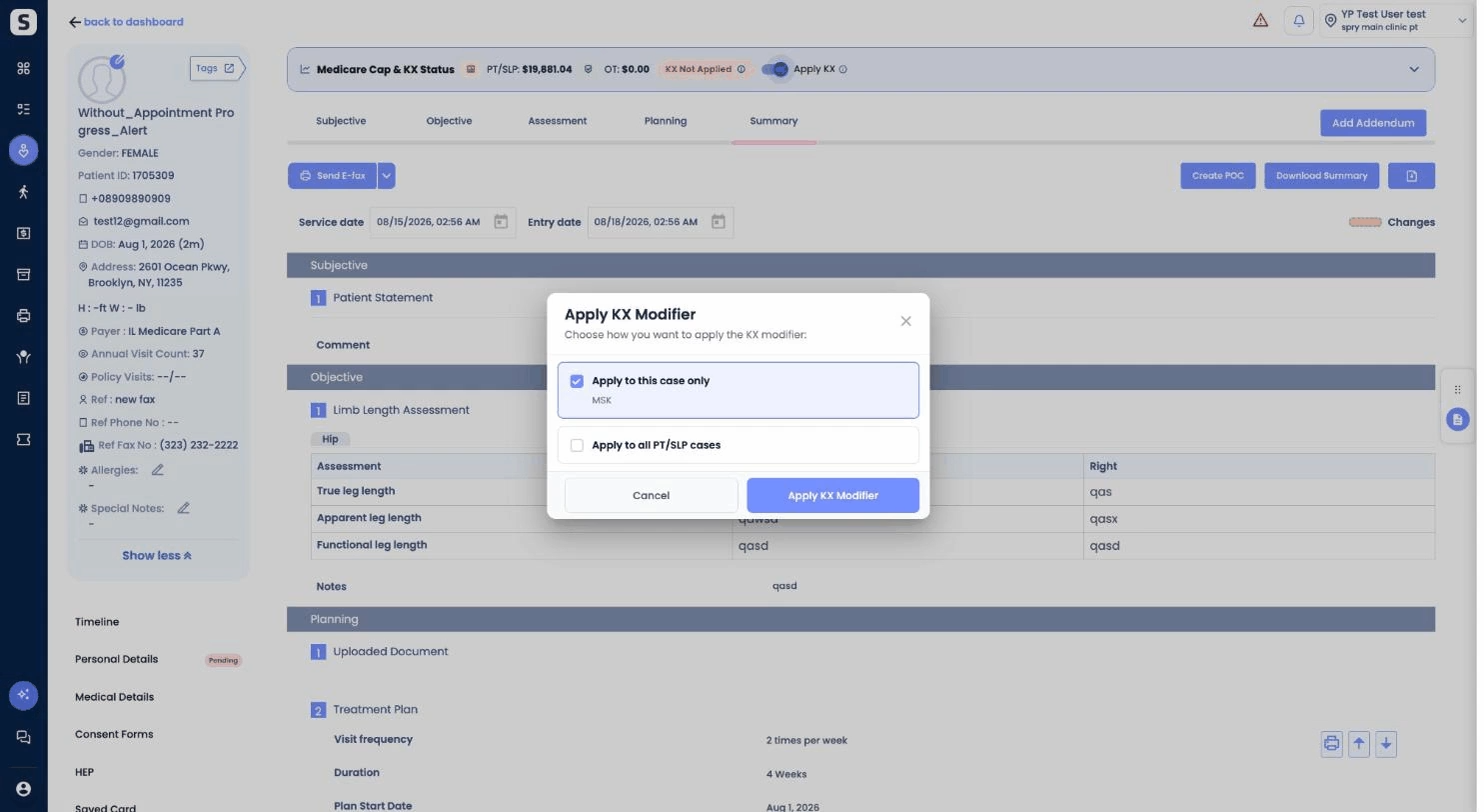
Step 6: Choose whether to apply KX for just this PT/SLP case or all cases, then click Apply KX Modifier to confirm.
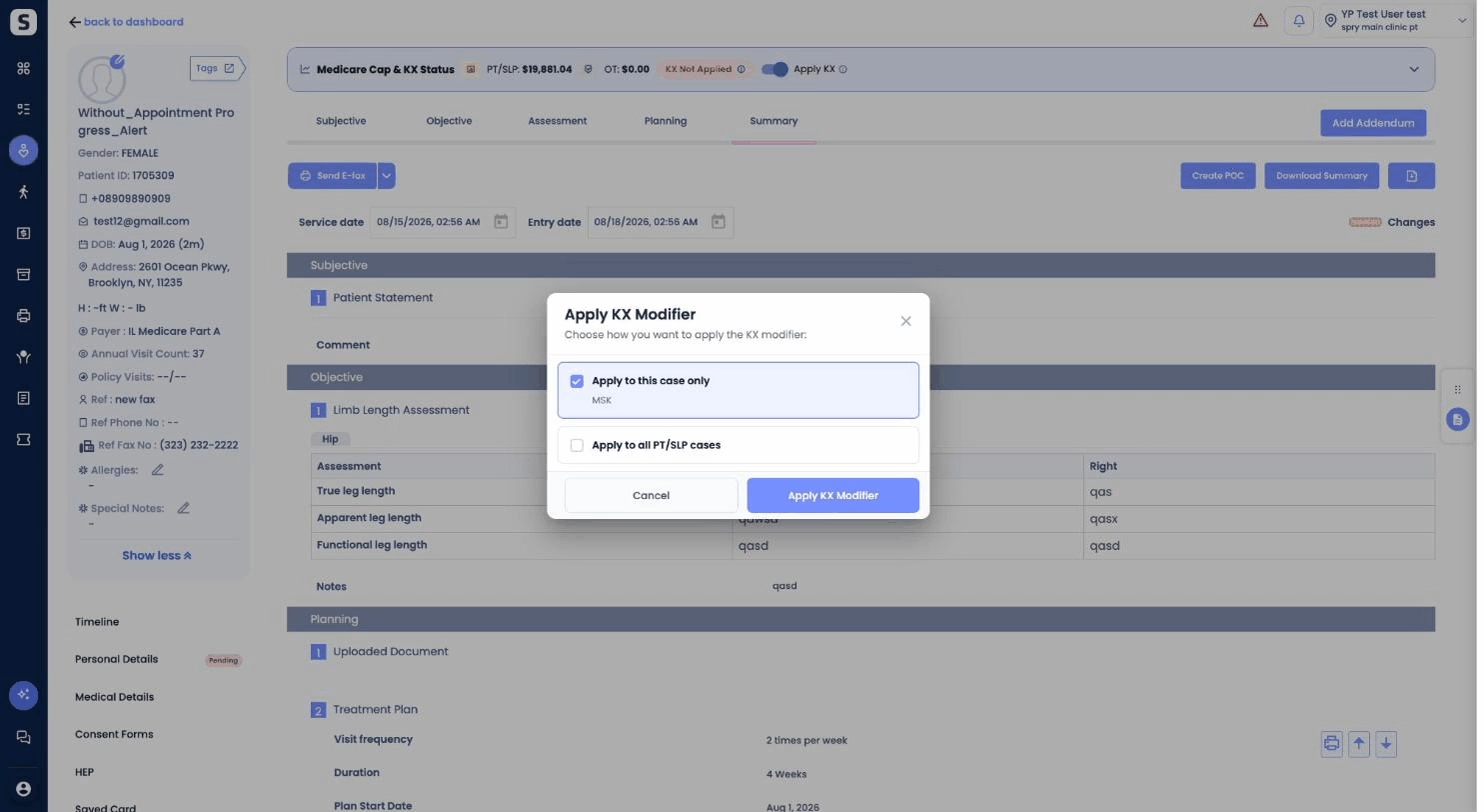
Step 7: Watch for the confirmation message showing KX is now enabled.
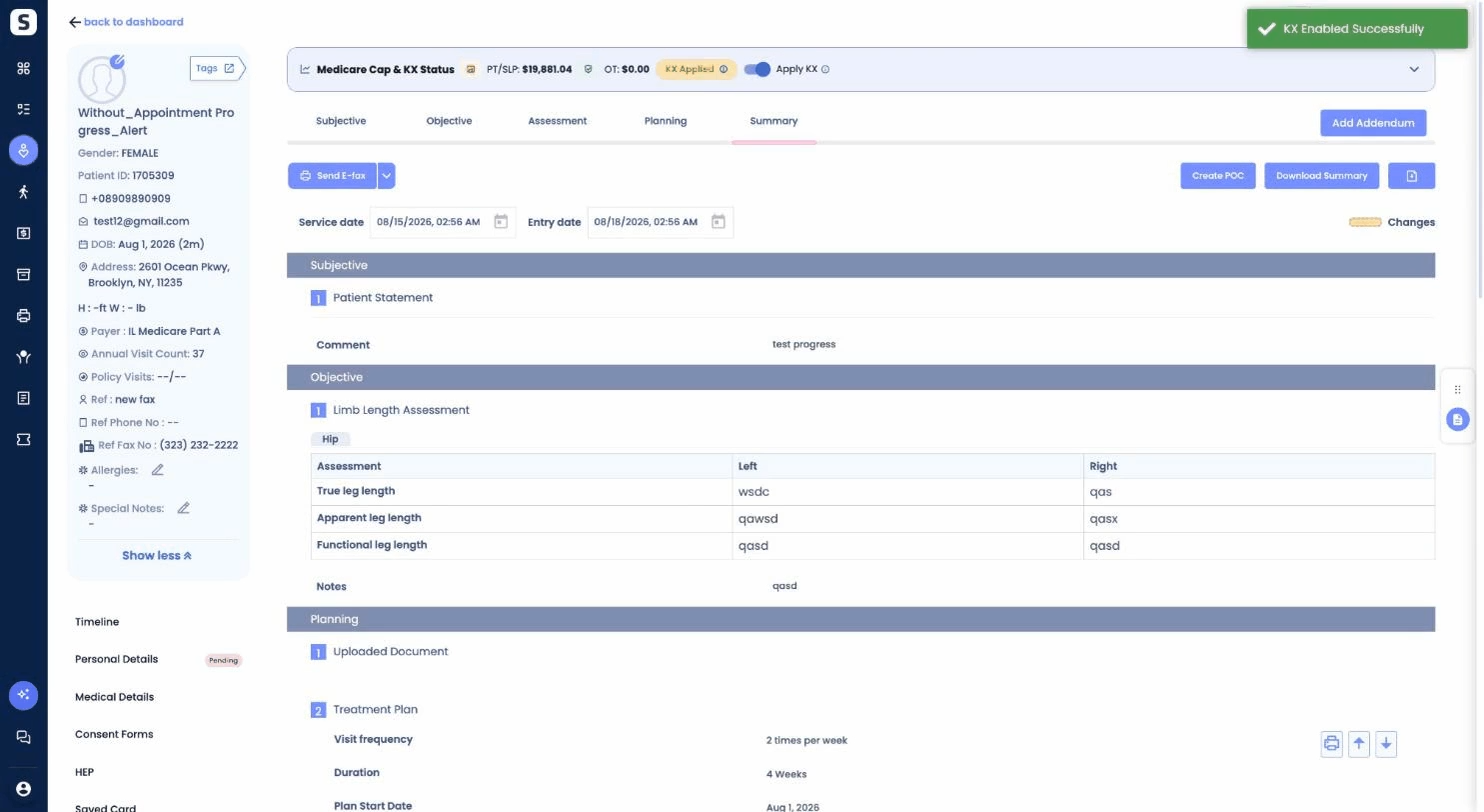
Spry handles the KX modifier automatically once a threshold is hit. Use the toggle to manually apply or remove the modifier if needed for compliance or corrections.